Loading Tutorstips...
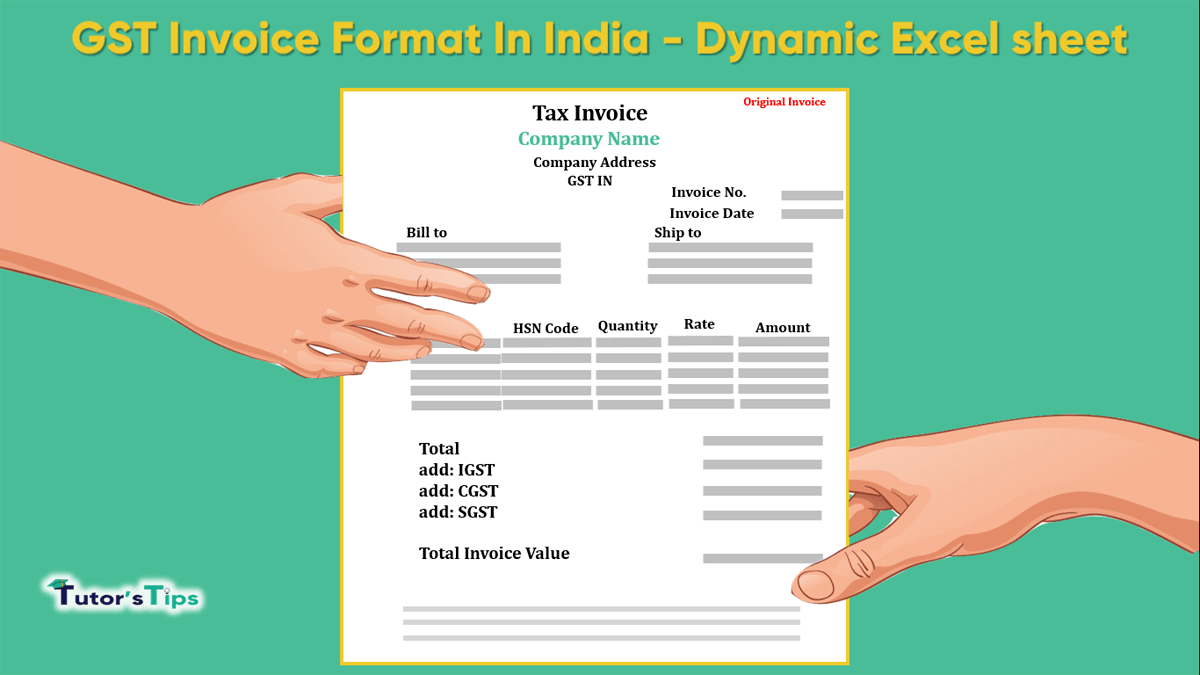
As per the new taxation system in India, Every registered dealer under GST has to make the invoice in the new format (GST Invoice Format)as per guided by Central Govt. or GST Act 2017. GST Invoice Format is a very crucial document in the GST Act, 2017 we have made software for you to provide help to you to generate GST Invoice.
| 1 | Life-Time Free Excess of 3.0 version |
| 2 | Auto-generated and save the invoice in just one click |
| 3 | Auto-generated new invoice No. |
| 4 | Auto Date Change to Current day Date |
| 5 | Auto Detect type of Sale (Interstate or Intrastate) and charge correct Type of GST i.e. IGST or CGST/SGST |
| 6 | Auto-detect Rate of GST from the stock list. |
| 7 | Maintained the list of stock. So, you don’t need to add stock items again and again while generating an invoice |
| 8 | Maintained the list of Customers. Select from the list and generate the invoice |
| 9 | Upload Your Logo |
| 10 | Add different shipping address |
| 11 | Add E-way bill details |
| 12 | Auto-generate Summary for all sale |
| 13 | Save of Invoice as PDF in folders |
| 14 | Generate Three Copies of Invoice -Customer Copy -Supplier Copy -Transported Copy |
| 15 | Auto Round off the total amount |
| 16 | Show all amount in rupee and paise with one click |
| 17 | Show all amount only in rupee with one click |
| 18 | Auto-generated total invoice amount in words |
| 19 | Add up to 10 Terms and conditions |
| 20 | You can add your bank details |
| 21 | Colorful invoice format |
| 22 | You can generate an invoice for up to 25 items |
| 23 | GST amount is shown Item wise with the rate of percentage |
| 24 | You can be allowed Trade discount to you Customers charge in simple percentage and amount will auto calculate |
| 25 | You can add Contact person Details i.e Name, Email, and Mobile No. in the customer list database |
| 26 | You can add the amount of freight paid |
First, you have to download it from the link below and Extract it with the help of WinRAR (Click Here to Download) software then you get a folder: -

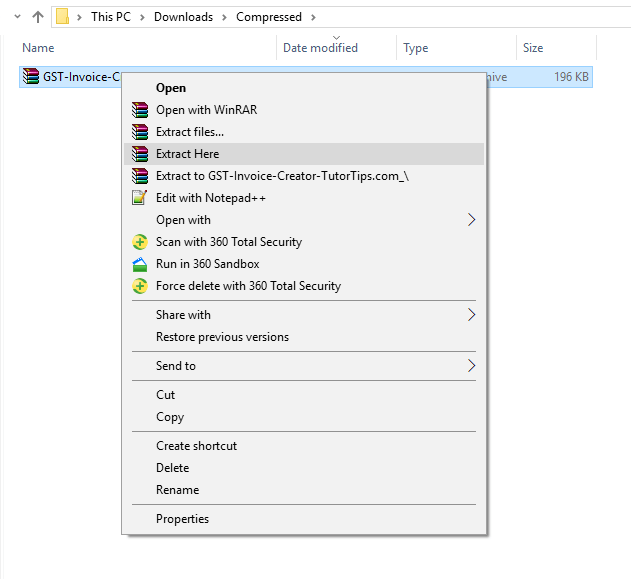
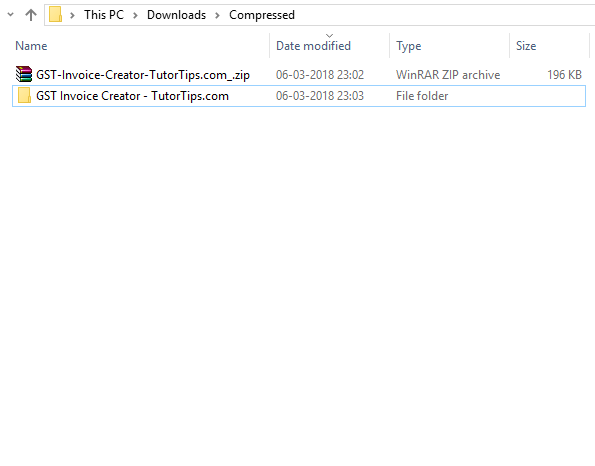
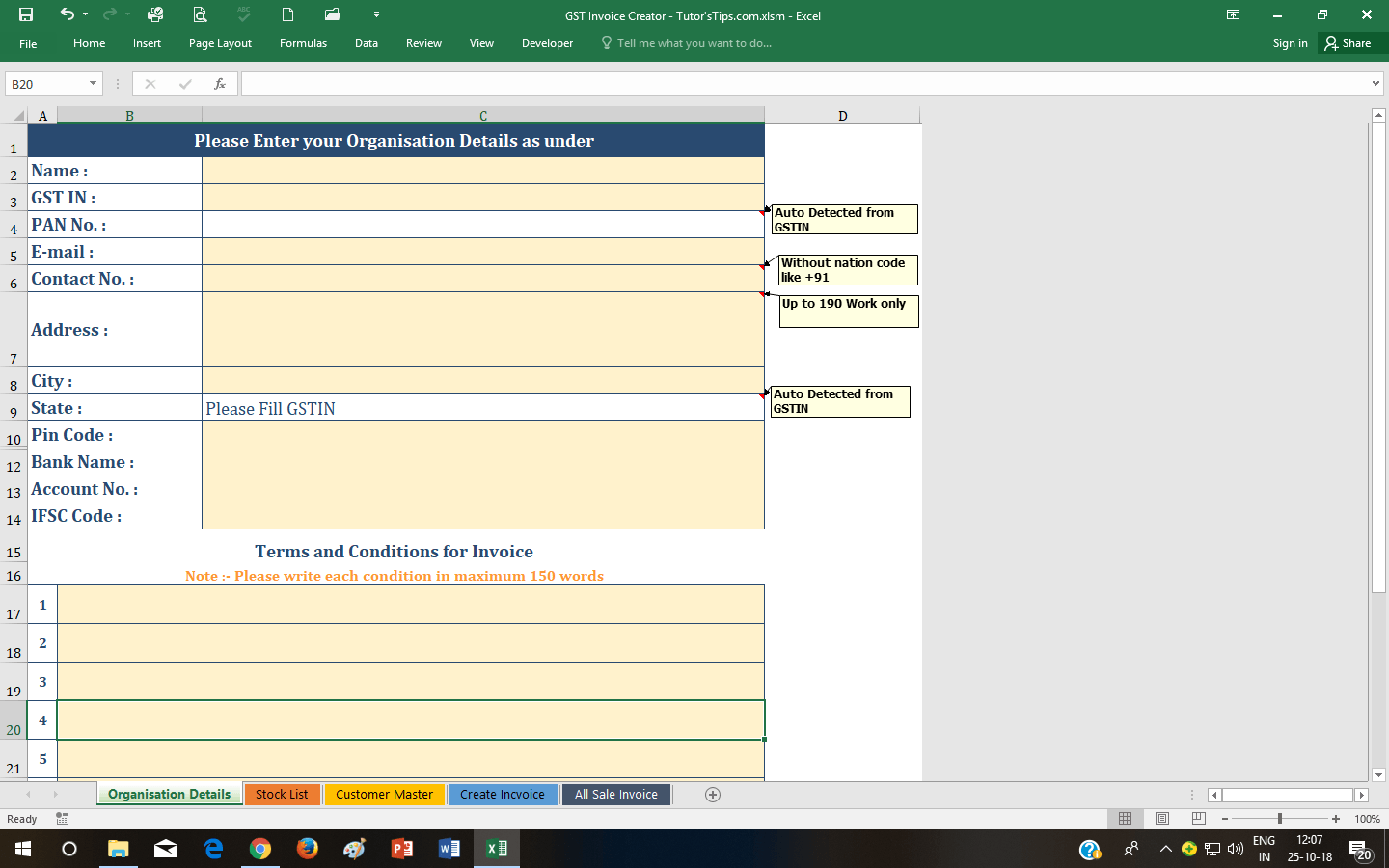
Now you have to open the Excel sheet from this folder and enable all the micro or options whatever asked by Microsoft Excel then enter the details asked in the sheet Named: Organisation Details. This information will be asked only one time by software.
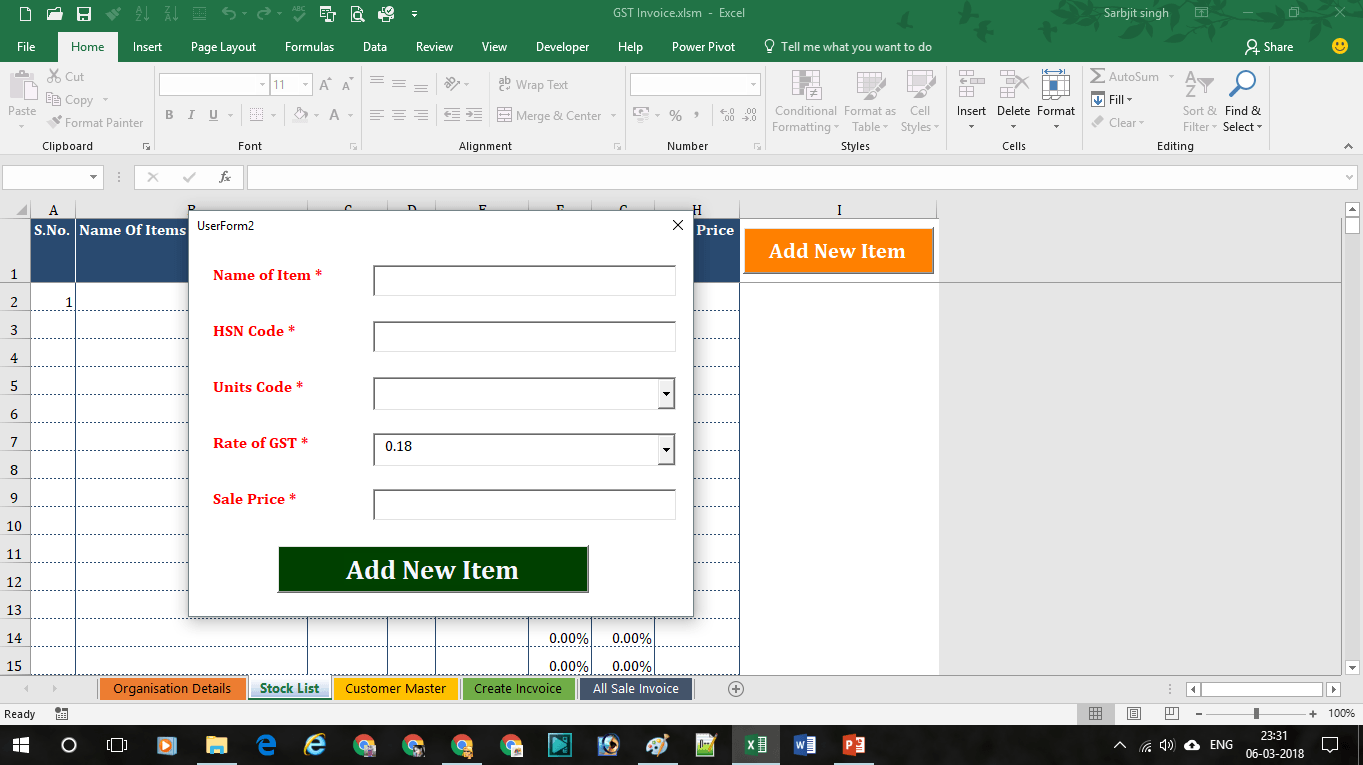
Now, you have to create your stock list for easy pop-up items at the time when you will creating/generating Invoice. You can also add any stock item at the time of creating/generating Invoice.
Click on the Button Add New Item then there will pop up a form fill this form and click on Button Add New Item is shown on the form. As shown in the image below.
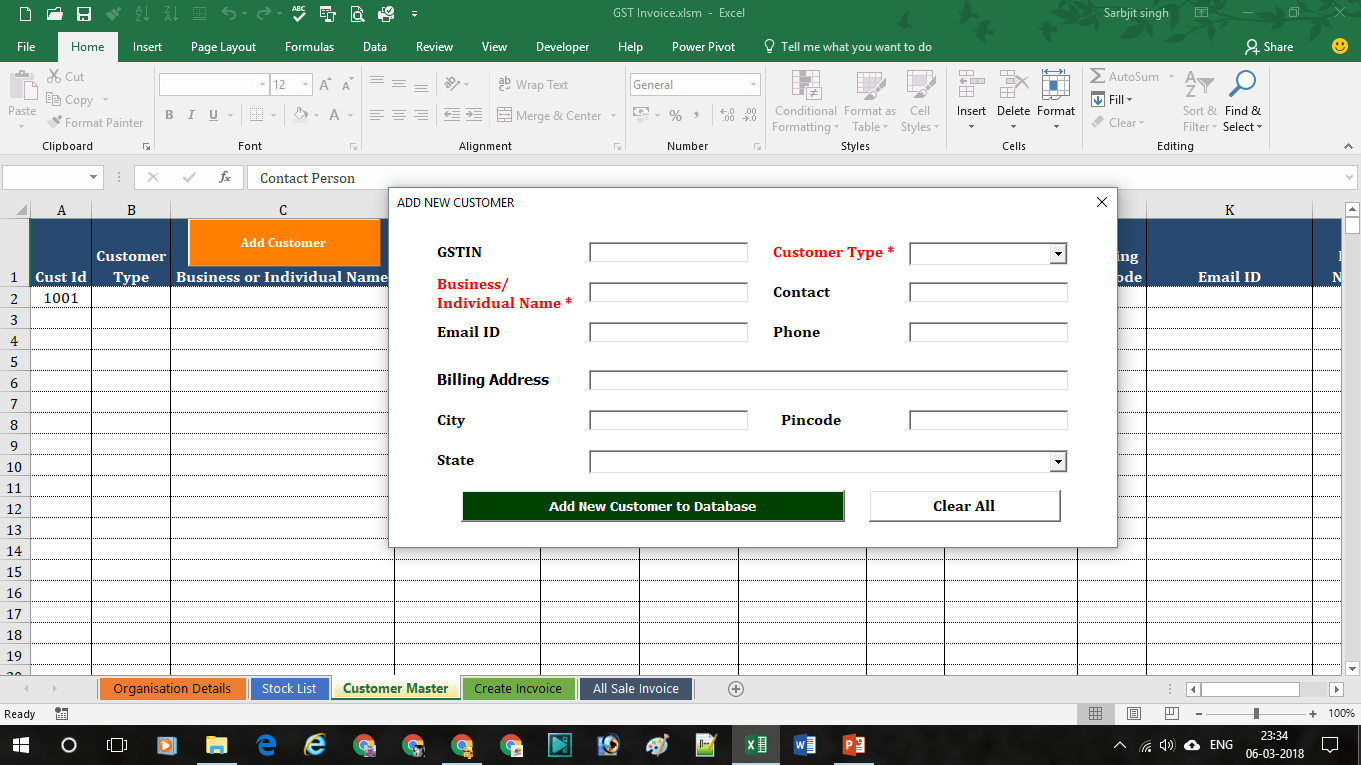
Now, you have to create your Customer list for easy and speedy invoice generation. You can also add New Customer at the time of creating/generating Invoice.
Click on the Button Add Customer then there will pop up a form fill this form and click on Button Add New Customer to Database is shown on the form. As shown in the image below.
Now, Goto sheet Create Invoice and select customer with the help of two options explained as the below:
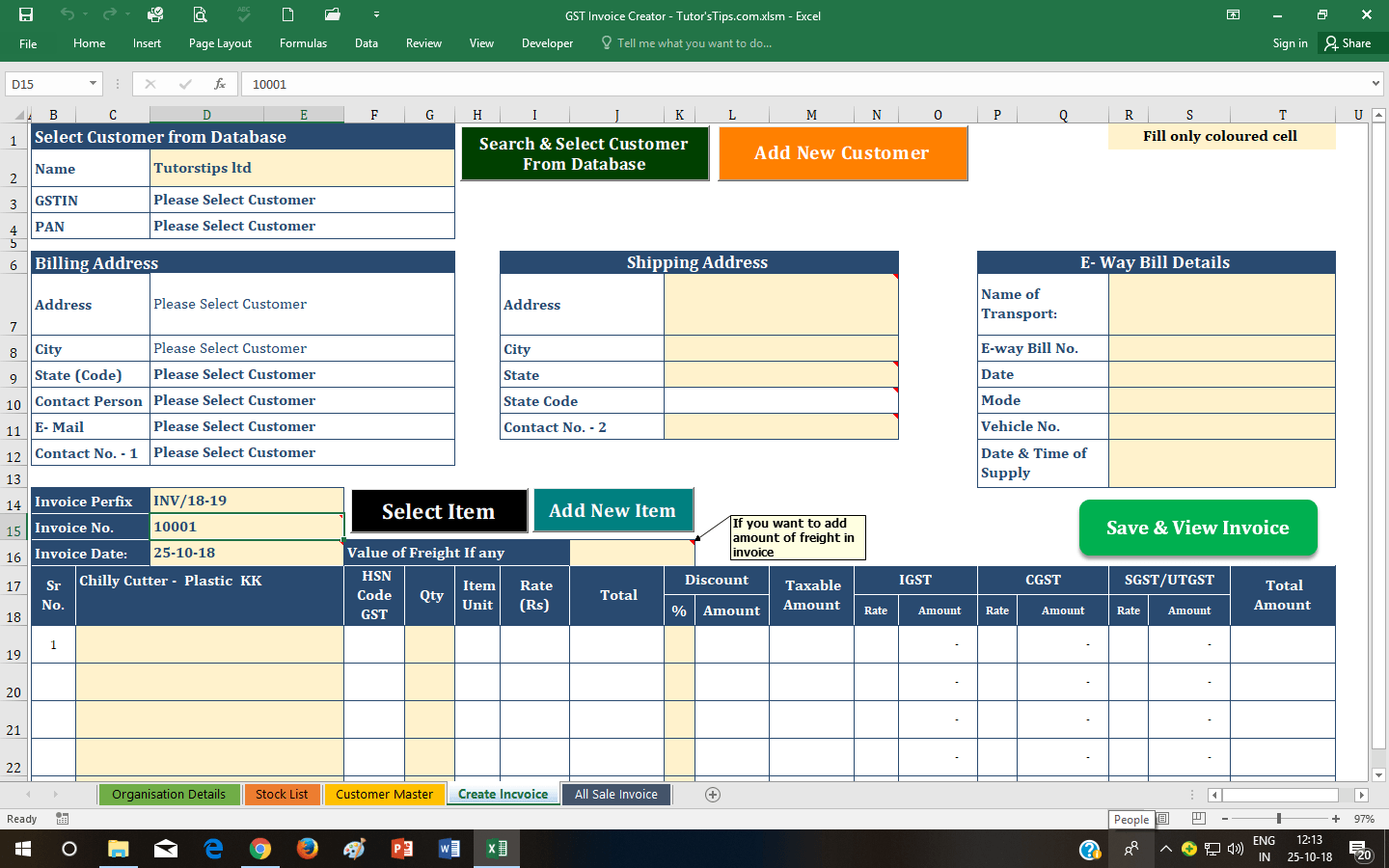
If you have already added the customer in the database then select it with the help of search customer and insert it into an invoice. and with the help of the second option, You will redirect to Form of Add new Customer.
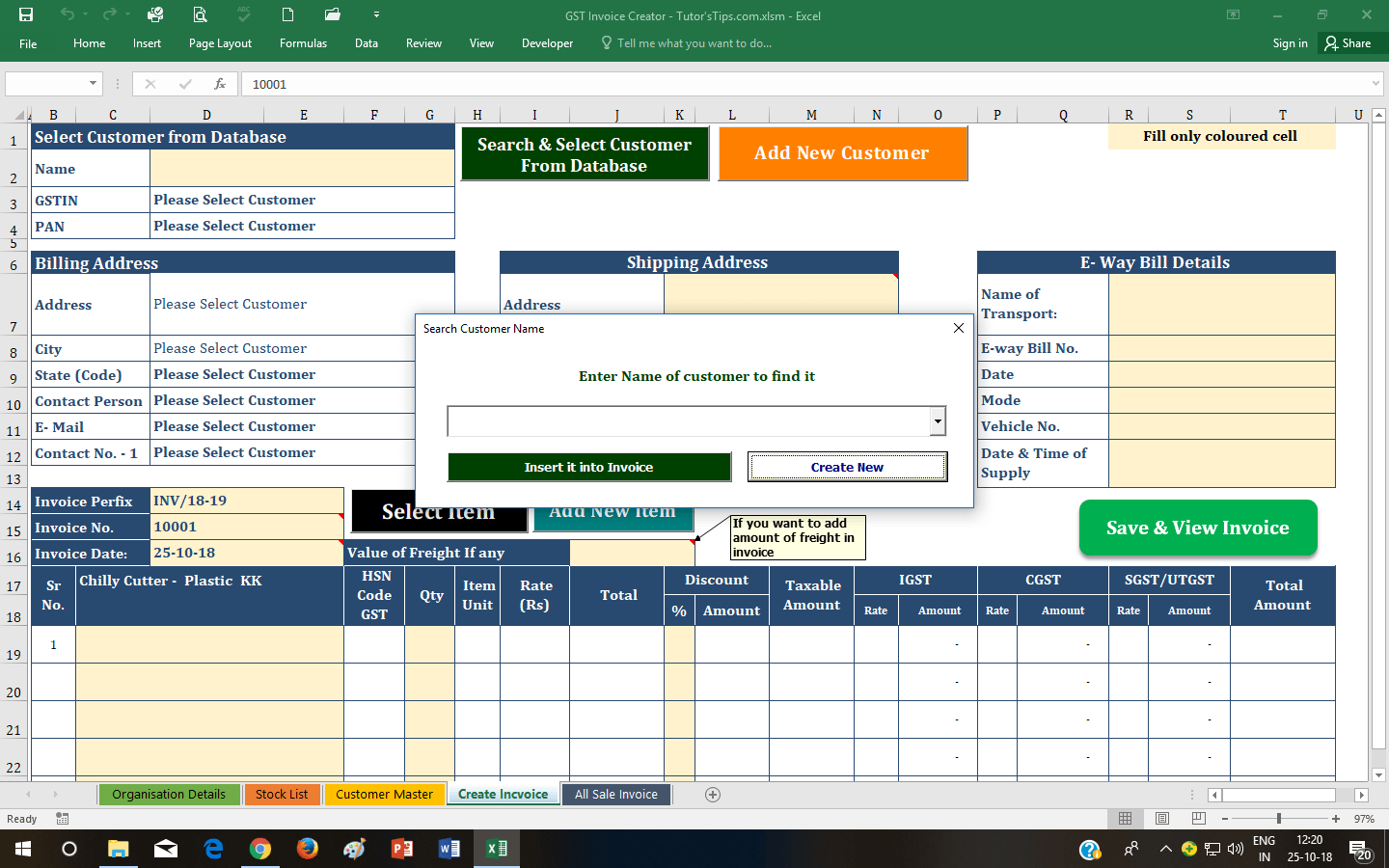
This option is the same as the option explained in Customer Page.
Then enter shipping address if different from the billing address.
Then decide your invoice No. format only One time then it will automatically get increment to next no.
like: if you decide 10001 then, when you save invoice it will automatically change to 10002. Special characters (|\/!@#$%^&*()) are not allowed in Invoice.
then Today date will show automatic but you can change the date of invoice if you want to but you can only change the date up to the date of your last invoice.
Now, select the items to be billed. The process is the same as the selection of the customer. Here is also available two option for search from old items and add new items if needed.
Now, Select Quantity and Discount(if applicable) only for each selected item then click on Save & view Invoice.
You will get all three saved copies of invoices and print it if needed.
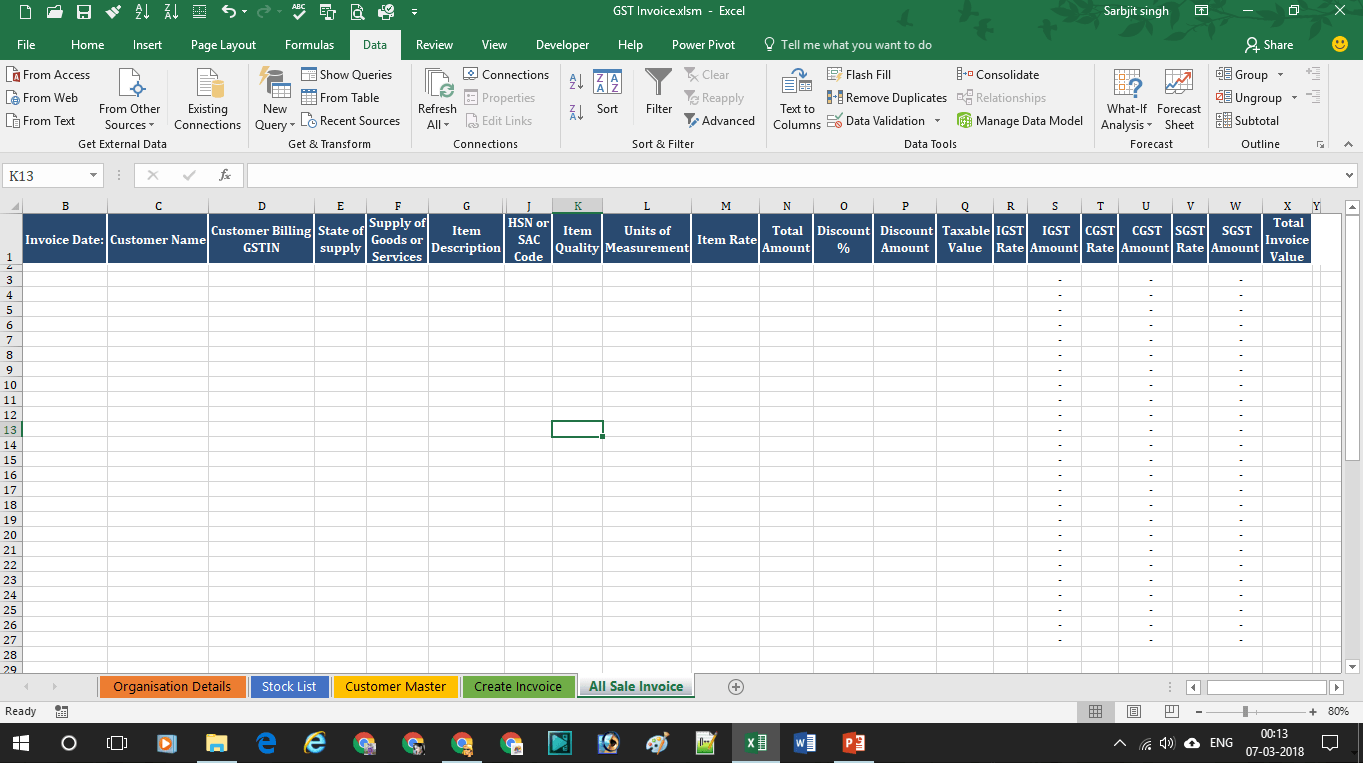
you will get all your sale of the Day, Month, Quarter, Semester and Year by the applying filter on it for your GST Returns.
Accounting & Commerce Educator
Sarbjit Singh holds a B.Com and M.Com degree and has over 12 years of teaching experience in double entry bookkeeping, financial accounting, and business studies.
GST Invoice Format in Excel As per the new taxation system in India, Every registered dealer under GST has to make the invoice in the new format (GST Invoice…
Class 11 and Class 12 commerce students, and CA Foundation aspirants, studying Goods and Services Tax (GST).
Yes — this page includes a short interactive quiz so you can check your understanding straight away.
29 June 2020
30 June 2020
30 June 2020
30 June 2020
1 July 2020
9 July 2020
17 July 2020
2 September 2020
2 September 2020
11 September 2020
11 September 2020
20 December 2020
22 December 2020