
Loading Tutorstips...

We can do our work in excel more efficiently with Basic Excel Shortcuts key. Today we will discuss 10 daily use excel shortcuts keys. With the help of these shortcuts, you will save your time more and do work quickly.
Please Note: - Your mind will take few days to store these all shortcuts, Firstly you will spend more time on using it after some time you will very fluent in it and then you will release it easy to remember.
Download the PDF file of all Basic Excel shortcuts from the following link: -
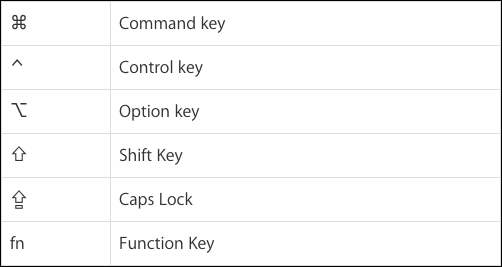
Most of the people already knew it. But these are the very important excel shortcuts if you don't Know then remember it first.
| Command to | Window shortcut | Mac Shortcut |
|---|---|---|
| Copy | Ctrl + C | Command Key + C |
| Cut | Ctrl + C | Command Key + X |
| Paste | Ctrl + V | Command Key + V |
To do more fast copy-paste shortcuts in the next row or column, you can use this commands because in copy and paste you have to copy the content first with "Ctrl + C" and then paste it with "Ctrl + V" but you will perform both the actions together with a single shortcut key.
| Command to | Window shortcut | Mac Shortcut |
|---|---|---|
| Copy to Right | Ctrl + R | Command Key + R |
| Copy to Down | Ctrl + D | Command Key + D |
If you want to paste the value(or other options) of the cell, not a formula included in it, then you have to use a special paste option of excel. Here is the shortcut to perform this instead of using a mouse.
| Command to | Window shortcut | Mac Shortcut |
|---|---|---|
| Show Special Paste Window | Ctrl + Alt + V | Command Key + Control Key + V |
| Paste Value only | Ctrl + Alt + V and then press the Only V Enter | Command Key + Control Key+V and then press the Only V Enter |
If you want to shift cursor fast from one cell to another then use these shortcuts. These shortcuts will allow you to shift from the first filled cell to the last filled cell within the row or column.
Shift your cursor from: -
| Command to | Window shortcut | Mac Shortcut |
|---|---|---|
| Shift Left to Right between the filled cells | Ctrl +  |
Control Key + |
| Shift Right to Left between the filled cells | Ctrl +  |
Control Key + |
| Shift Up to Down between the filled cells | Ctrl + |
Control Key + |
| Shift Down to Up between the filled cells | Ctrl + |
Control Key + |
| Shift left, right, up and down | Use arrow keys | Use arrow keys |
If you want to select an entire row, column, table or worksheet fast then use the following excel shortcuts key: -
Select An entire: -
| Command to | Window shortcut | Mac Shortcut |
|---|---|---|
| Select a Row | Shift + Space Bar | Shift Key + Space Bar |
| Select a Column | Ctrl + Space Bar | Control Key + Space Bar |
| Select a worksheet, Table | Ctrl + A | Command Key + A |
If you want to select hide row or column fast then use the following excel shortcuts key: -
| Command to | Window shortcut | Mac Shortcut |
|---|---|---|
| Hide Row | Ctrl + 9 | Control Key + 9 |
| Hide Column | Ctrl + 0 | Control Key + 0 |
| Command to | Window shortcut | Mac Shortcut |
|---|---|---|
| Redo the last action | Ctrl + Y | Command Key + Y |
| Undo the last action | Ctrl + Z | Command Key + Z |
| Repeat the last action | F4 | Command Key + Y |
| Command to | Window shortcut | Mac Shortcut |
|---|---|---|
| Find any value | Ctrl + F | Command Key + F |
| Replace any value | Ctrl + H | Control Key + H |
| Command to | Window shortcut | Mac Shortcut |
|---|---|---|
| Ctrl + P | Command Key + P | |
| Print Preview | Ctrl + F2 | N/A |
| Command to | Window shortcut | Mac Shortcut |
|---|---|---|
| Save | Ctrl + S | Command Key + S |
| Save as | alt+ F2 or F12 | Command Key + Shift Key + S |
Thanks for reading the topic
Please Share and comment your feedback in the comment box.
to buy the Microsoft Excel Click Here.
Accounting & Commerce Educator
Sarbjit Singh holds a B.Com and M.Com degree and has over 12 years of teaching experience in double entry bookkeeping, financial accounting, and business studies.
We can do our work in excel more efficiently with Basic Excel Shortcuts key. Today we will discuss 10 daily use excel shortcuts keys. With the help of these…
Class 11 and Class 12 commerce students, and CA Foundation aspirants, studying Excel Shortcuts.
Yes — this page includes a short interactive quiz so you can check your understanding straight away.